Setting Up Your Account
Complete guide to account setup, profile configuration, and initial settings on Quizora.
Setting up your Quizora account properly ensures you get the most out of the platform. This guide covers everything from initial registration to configuring your preferences.
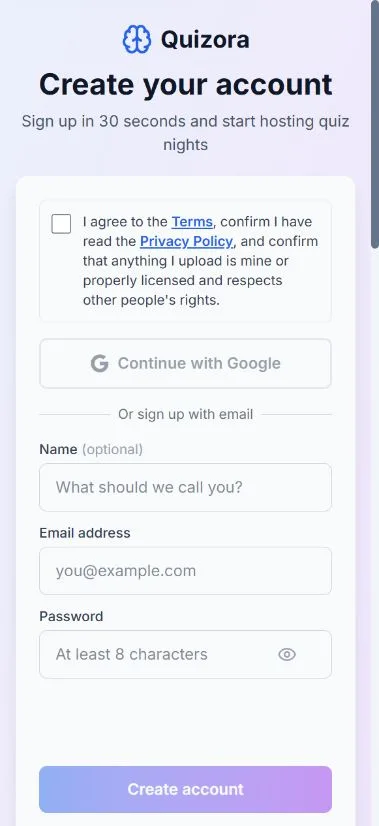
Creating Your Account
You can sign up for Quizora in several ways:
Email Registration
- 1. Visit the sign-up page
- 2. Enter your email address
- 3. Create a secure password
- 4. Verify your email address
- 5. Complete your profile
Google Sign-In
- 1. Click "Continue with Google"
- 2. Select your Google account
- 3. Authorize Quizora access
- 4. Complete your profile setup
- 5. Start creating quizzes!
Profile Configuration
After creating your account, complete your profile in the Settings page:
Profile Information
Required Fields:
- Display name
- Email address
- Time zone
Optional Fields:
- • Profile picture
- • Organization name
- • Bio/description
- • Website URL
- • Social media links
Notification Preferences
Configure how and when you want to receive notifications:
Email Notifications
Privacy Settings
Control your privacy and data sharing preferences:
Privacy Options
Profile Visibility
Choose whether your profile is visible to other users or kept private.
Quiz History
Control whether your quiz participation history is visible to quiz hosts.
Analytics Sharing
Opt in or out of anonymous usage analytics to help improve Quizora.
Billing and Subscription
Set up your payment information and choose your plan:
Free Plan
- • 5 events per month
- • Up to 20 questions per quiz
- • Basic analytics
- • Community support
Perfect for trying out Quizora
Pay as you go
- • £3 per event
- • Up to 50 questions
- • Full analytics
- • Email support
Great for occasional use
Monthly Plan
- • £15/month
- • Unlimited questions
- • Advanced analytics
- • Priority support
Best for regular hosts
Account Security
Protect your account with these security measures:
Strong Password
Use a unique password with at least 8 characters, including uppercase, lowercase, numbers, and symbols.
Two-Factor Authentication (Coming Soon)
Add an extra layer of security with SMS or authenticator app verification.
Login Alerts
Get notified of new device logins and suspicious account activity.
Getting Started Checklist
Complete these steps to get the most out of your Quizora account: