Kick, ban, and host controls
How to manage participants during a live quiz: kick or ban players, refresh the player list, and use other host controls.
Managing participants during a quiz
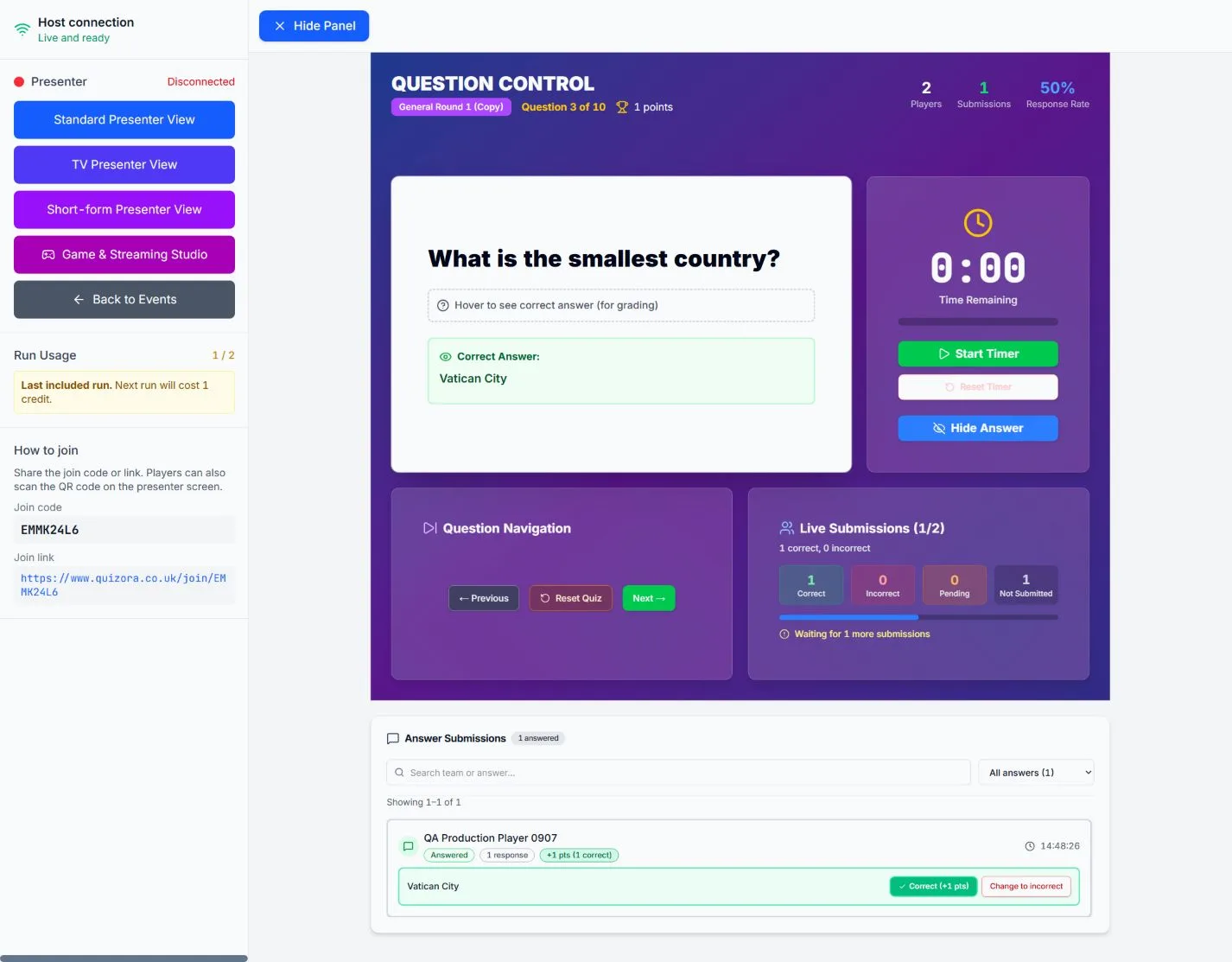
As the host, you can manage who is in your quiz from the Waiting to start screen and during the event. Use kick to remove a team from the current session, or ban to remove them and prevent them from re-joining with the same team name.
Kick a player (or team)
Kick removes a team from the current quiz session. They disappear from the player list and can no longer submit answers. They can re-join later with the same join code and team name if you have not banned them.
How to kick
- On the host screen, open the left panel if it is collapsed.
- On the Waiting to start view, find the list of players/teams.
- Next to the team you want to remove, click the Kick (user-minus) button.
- The team is removed from the session and can re-join with the same name if they want.
Ban a player (or team)
Ban removes the team from the quiz and blocks that team name from re-joining for this event. Use it when you need to prevent someone from coming back with the same name (e.g. inappropriate names or repeat disruption).
How to ban
- On the host screen, find the player/team in the list.
- Click the Ban (ban) button next to their name.
- Confirm in the dialog. The team is removed and cannot re-join with that team name for this event.
Ban applies to the team name for the current event. Someone could still join with a different team name unless you change the join code or end the event.
Other host controls
From the host screen you can also:
- Refresh participants – Reload the player list to see the latest joins and connection status.
- Reset scores – Clear all team scores (e.g. before a new round or restart).
- Start quiz / Start round / Next question – Control the flow: start the quiz, show round intro, then advance through questions.
- Reveal answer / Hide answer – Show or hide the correct answer on the presenter and player screens.
- Timer – Start, pause, or stop the question timer.
- Presenter views – Open Standard, TV, or Short-form presenter in a new window for display or streaming.
Where to find these controls
When you are hosting an event, the main controls are in the left panel of the host screen. The player list (with kick/ban) is visible on the Waiting to startview. Connection status, run usage, and "How to join" (join code and link) are also in the left panel so you can share them with participants.
Tip
Use Kick for temporary removal (e.g. wrong team name). Use Ban when you want to block a team name from re-joining for the rest of the event.