Presenter views (Standard, TV, Short-form)
How to display your quiz on a big screen or stream it: Standard (event-specific), TV (follows active quiz), and Short-form (vertical for TikTok/Reels).
What are presenter views?
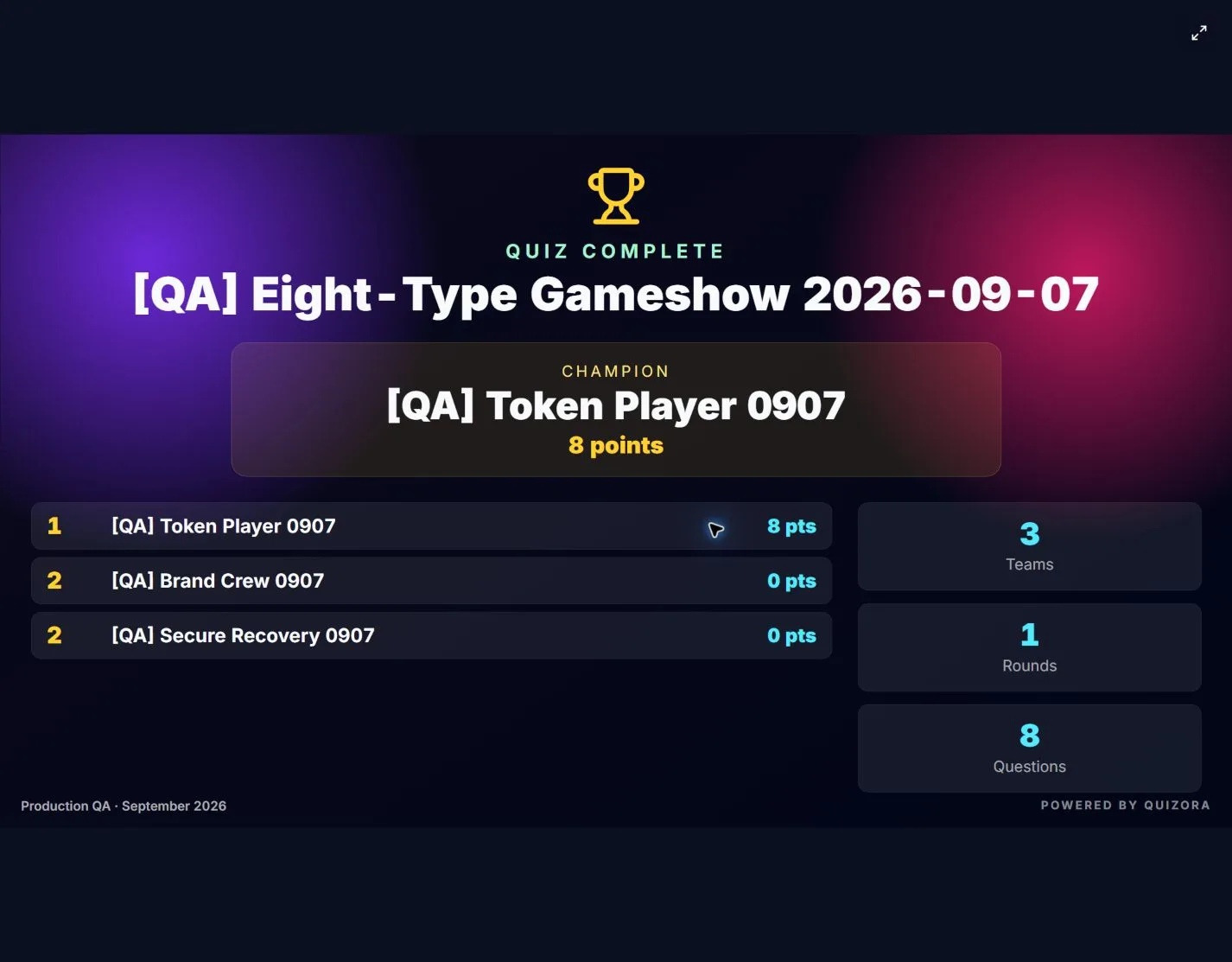
Presenter views are full-screen displays that show the same content your players see: questions, answers, timer, leaderboard, and results. They receive updates in real time from the host screen, so you control the quiz from your device while the display stays in sync. Use them for projectors, TVs, or streaming (e.g. YouTube, TikTok).
Three presenter modes
Quizora offers three ways to open a presenter display. Each opens in a new window so you can move it to another monitor or use it for capture/streaming.
Standard Presenter View
Standard is tied to the event you are currently hosting. It shows that event's quiz only. Use it when you have one event and want a dedicated display (e.g. one projector) that always shows this event. It uses a 16:9 layout suited for TVs and projectors.
How to open Standard Presenter
- Open the event and go to the Host screen.
- In the left panel, find the Presenter section (connection status and buttons).
- Click Standard Presenter View. A new window opens with the presenter display.
The URL is /events/[your-event-id]/presenter. You can bookmark it or open it on another device if you are logged in and have access to that event.
TV Presenter View
TV follows your currently active quiz. If you run multiple quizzes in a row (e.g. back-to-back events), this view automatically shows whichever quiz is running. When no quiz is active, it shows a holding screen. Use it for a fixed display (e.g. a TV in a pub) that should always show the live quiz without changing the URL. Layout is 16:9.
How to open TV Presenter
- From the host screen, in the left panel under Presenter, click TV Presenter View.
- A new window opens. It will show a holding message until you start a quiz on the host screen.
- When you start a quiz, the TV view updates automatically to show that quiz.
The URL is /presenter/tv. Keep this window open on your display; no need to change it when you switch events.
Short-form Presenter View
Short-form is the same as TV (follows your active quiz) but in a vertical 9:16 layout. Use it for TikTok, Reels, YouTube Shorts, or any vertical streaming. When no quiz is running, it shows a holding screen. Open it from the host panel same as TV, then capture this window with your streaming software.
How to open Short-form Presenter
- From the host screen, in the left panel under Presenter, click Short-form Presenter View.
- A new window opens in a vertical aspect ratio. It follows your active quiz like TV view.
- Use this window as the source for your vertical stream (e.g. OBS, TikTok Live).
The URL is /presenter/short.
Where to find the buttons
On the Host screen, the left panel contains connection status and run usage. Just below the Presenter connection status you will see three buttons: Standard Presenter View, TV Presenter View, and Short-form Presenter View. Each opens the corresponding view in a new window. If a pop-up is blocked, the app may fall back to opening the URL in the same tab.
Quick comparison
- Standard – One event only, 16:9. Best for a single event on one display.
- TV – Follows active quiz, 16:9. Best for a fixed display that should always show the current quiz.
- Short-form – Follows active quiz, 9:16. Best for vertical streaming (TikTok, Reels, Shorts).
Tip
Presenter views are "dumb" displays: they only receive state from the host. All control (start quiz, next question, reveal answer, timer) stays on the host screen.