Troubleshooting Connection Issues
Solve quiz loading problems, participant connection issues, and network-related problems.
Common Connection Problems
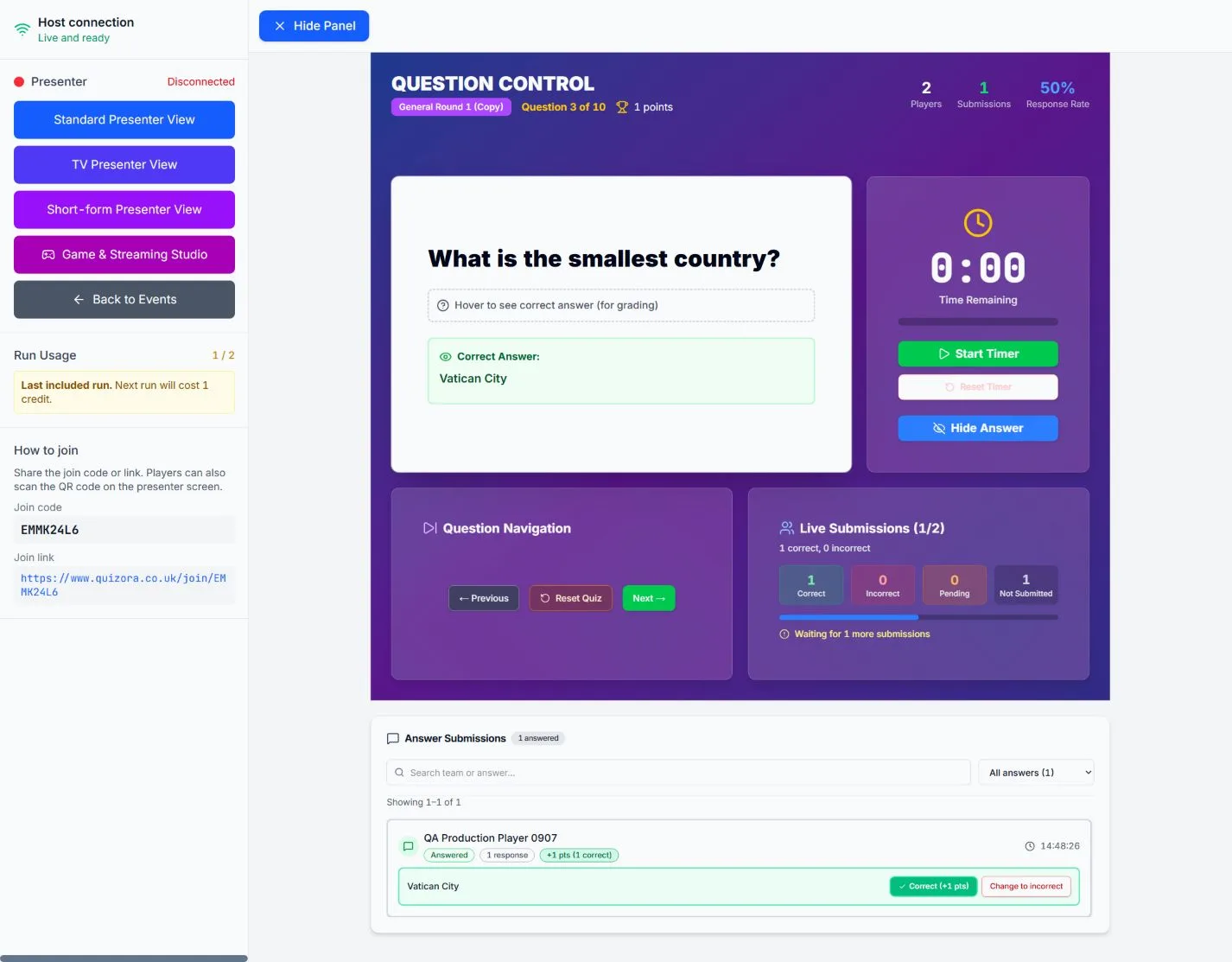
Connection issues can prevent quizzes from loading, stop participants from joining, or cause interruptions during live events. This guide covers the most common problems and their solutions.
Quick Diagnostic Steps
Before diving into specific solutions, try these quick diagnostic steps:
1-Minute Connection Check
- Check your internet connection by visiting another website
- Refresh the page (Ctrl+F5 or Cmd+Shift+R for hard refresh)
- Try opening Quizora in a private/incognito browser window
- Check if other participants are experiencing the same issue
Quiz Won't Load
If the quiz page isn't loading at all:
Browser Issues
Clear Browser Cache
- • Chrome: Settings → Privacy → Clear browsing data
- • Firefox: Settings → Privacy → Clear Data
- • Safari: Safari → Clear History
- • Edge: Settings → Privacy → Clear browsing data
Disable Browser Extensions
Ad blockers and privacy extensions can sometimes interfere with Quizora. Try disabling them temporarily or add Quizora to your allowlist.
Network Issues
Check Internet Speed
Quizora requires a stable internet connection. Test your speed atspeedtest.net
- • Minimum: 1 Mbps download for basic functionality
- • Recommended: 5+ Mbps for smooth live quizzes
- • For hosts: 10+ Mbps upload for reliable streaming
Firewall and Security Software
Corporate firewalls may block Quizora. Contact your IT department to allowlist:
- •
*.quizora.co.uk - •
*.ably.io(for real-time features) - •
*.stripe.com(for payments)
Participants Can't Join
If participants are having trouble joining your quiz:
Common Join Issues
Invalid Join Code
- • Verify the code is entered correctly (case-sensitive)
- • Ensure the quiz is published and active
- • Check if the quiz has expired or been deleted
- • Try using the direct link instead of the code
Quiz Not Started
- • For live quizzes, ensure you've clicked "Start Quiz" as the host
- • Check the scheduled start time hasn't passed
- • Verify participants are using the correct join link
Real-Time Connection Problems
Issues with live features like leaderboards, chat, or question updates:
WebSocket Connection Failed
Real-time features use WebSocket connections. If they're not working:
- • Check if your network blocks WebSocket connections
- • Try switching to a different network (mobile hotspot)
- • Contact your IT department about WebSocket support
- • Use a VPN if corporate restrictions apply
Delayed Updates
If leaderboards or questions update slowly:
- • Close other bandwidth-heavy applications
- • Move closer to your WiFi router
- • Switch from WiFi to mobile data temporarily
- • Refresh the page to re-establish connection
Device-Specific Issues
Different devices may have unique connection challenges:
Mobile Devices
iOS Safari: Enable "Allow Cross-Website Tracking" for Quizora
Android Chrome: Disable "Lite mode" if enabled
Mobile Data: Ensure you have sufficient data allowance
Battery Saver: Disable power saving modes during quizzes
Desktop/Laptop
Windows: Check Windows Defender firewall settings
Mac: Verify System Preferences → Security → Firewall
Corporate Networks: Contact IT for proxy/firewall configuration
VPN: Try disconnecting VPN if connection issues persist
Advanced Troubleshooting
For persistent connection issues, try these advanced solutions:
Network Diagnostics
DNS Issues
Try changing your DNS servers to Google (8.8.8.8, 8.8.4.4) or Cloudflare (1.1.1.1, 1.0.0.1)
Router Reset
Unplug your router for 30 seconds, then plug it back in and wait for full restart
ISP Issues
Check your ISP's status page or contact them if issues persist across multiple devices
Prevention Tips
Avoid connection issues in future quizzes:
Before Your Quiz
- Test your setup 30 minutes before the event
- Have a backup internet connection ready
- Share troubleshooting tips with participants
- Close unnecessary applications and browser tabs
During Your Quiz
- Monitor the participant count for sudden drops
- Have our support contact ready for emergencies
- Pause the quiz if widespread issues occur
- Communicate with participants via chat or announcements
- • Your browser and version
- • Your internet speed test results
- • Any error messages you're seeing
- • Steps you've already tried